
This is an old revision of the document!
Table of Contents
Observing procedure
Observing is done using virtual destop on the song1m virtual machine.
Typically, there will be 3 active desktops on song1m. On the first one, there should be a terminal with at least 5 tabs, running the following processes:
- aposong : main control window
- status : populates status window and databases
- guider : process that waits for guide commands from aposong
- video1m : shows a continuous webcam view using the VLC player (more practical than the web interface for the webcam, which you would need to point the webcam). There should be a browser open for the web interface if needed.
- override : xxx
On the second desktop, have a vnc window logged into spec1m (vncviewer spec1m.apo.nmsu.edu from a song1m terminal), which should have running:
- spectro_app : shows the status of the spectrograph detector, click the desktop icon to start it
- ASCOM Remote : click the desktop icon to start it
On the third desktop, have a vnc window logged into pwi1m (vncviewer pwi1m.apo.nmsu.edu from a song1m terminal),
- PWI4 : open from desktop icon
- ASCOM Remote : open from desktop icon
Under normal operations, robotic observing is accomplished with a single command in aposong. For example:
robotic.observe(focstart=33200,display=disp,dt_sunset=-2)
where focstart is an inital focus guess, and disp is a pyvista display object if you want to see images as they are being taken.
The basic robotic workflow is:
- touches an MJD file to show sequence has started
- wait until sunset+dt_sunset (dt_sunset can be set with keyword to robotic.observe, default=0)
- wait until safe to open, as determined from either 2.5m open, 3.5m open or override set
- open dome and mirror covers, and turn on telescope fans
- wait until sunset (if not yet there)
- open louvers
- wait until nautical twilight+dt_nautical (also set by keyword, default=0)
- do an initial focus run (until initfoc=False keyword is given)
- loop until morning nautical twilight
- if unsafe to observe, close dome and wait 90 seconds
- else if dome is closed and now safe to open, open dome
- else if it has been more than dt_focus (default=1.5 unless specified by keyword), do a focus run
- else choose best object to observe
- if not the same as last object, acquire object in guider
- perform requested observing sequence
- close dome, turn off fans, close louvers, stop guider, park telescope and dome (all via domeclose())
- take morning cals
- create guider movies, focus plots, reduce data, and make web page
- sends successful completion email with webcam snapshot attached, removes MJD file
Two cron jobs run at 8:00 each morning:
- one runs copy command to sync /data/1m to astronomy /home/1m
- second checks for existence of an MJD file and sends failure email if it finds one
Status window
The status process running on song1m shows a diagnostic window such as the figure below
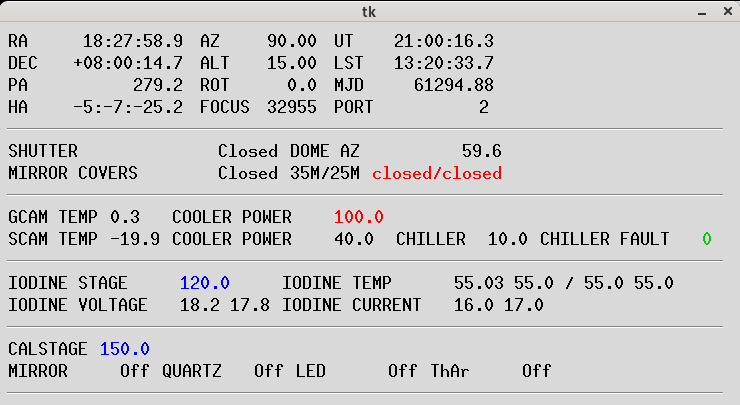
This window has a few important diagnostics to understand and keep an eye one:
- x
- y
- z
Morning
After each night of observing, you should check:
- webcam to ensure that dome is closed!
- aposong window to see if robotic sequence completed normally, which will leave it at a python prompt
- if sequence completed normally, check web pages to see what was observed, check focus curves, check throughput plots as desired
- if sequence didn't complete normally, try to figure out what happened! May be useful to create the web pages, etc., manually, using
robotic.mkhtml(int(Time.now().mjd))
Can also consult logs in /data/1m/logs/daily.log
Troubleshooting
If observing did not complete successfully:
- check the webcam to ensure that dome is closed!
- if not closed, or if closed but telescope not in park position, issue domeclose() command from an aposong window (you may wish to start a new one if you want to leave the incompleted observing one open for inspection)
- if dome does not close, may need to call APO!
- if telescope is not parked, make sure mirror covers are closed with mirror_covers() and then T.park()
- to determine failure mode:
- attempt to understand where script failed
- check guider window to see if guider program is still running
- check for any errors in status window
- check pwi1m computer to see if Planewave had issues, either disconnected or one axis disabled
- check spec1m computer to ensure ASCOM Remote and Alpyca server are running
Weather
- The APO weather status page provides site information about the status of the 2.5m and 3.5m telescopes.
- Infrared all-sky camera at APO
- Optical all-sky camera at APO